A NATIVE MAC APP BY KYROLABS
Start with a capture.
Carry it through.
ScreenCapPro brings screen capture, image editing, recording, and a searchable library into one Mac workflow.
 CAPTURE / SELECT / CREATEONE MAC WORKFLOW
A QUICK WAY INTO THE WORKFLOW
Press once.
Select. Edit.
Press ⇧⌘2 anywhere to start an area capture. ScreenCapPro starts the Editor while you select, so your capture is ready to mark up as soon as you finish.
The animation is a flow preview; actual response depends on your Mac and selection.


SCREEN CAPTURE IS THE FIRST STEP
Capture a detail.
Make it useful.
Explain it with editable markup. Record a walkthrough when motion matters. Keep the result close for next time.
See how it worksONE WORKFLOW / FOUR PARTS
Made to move
with the work.
Each step adds a way to use the same captured material: clarify a still, record a process, or find the reference again.
01CAPTURE
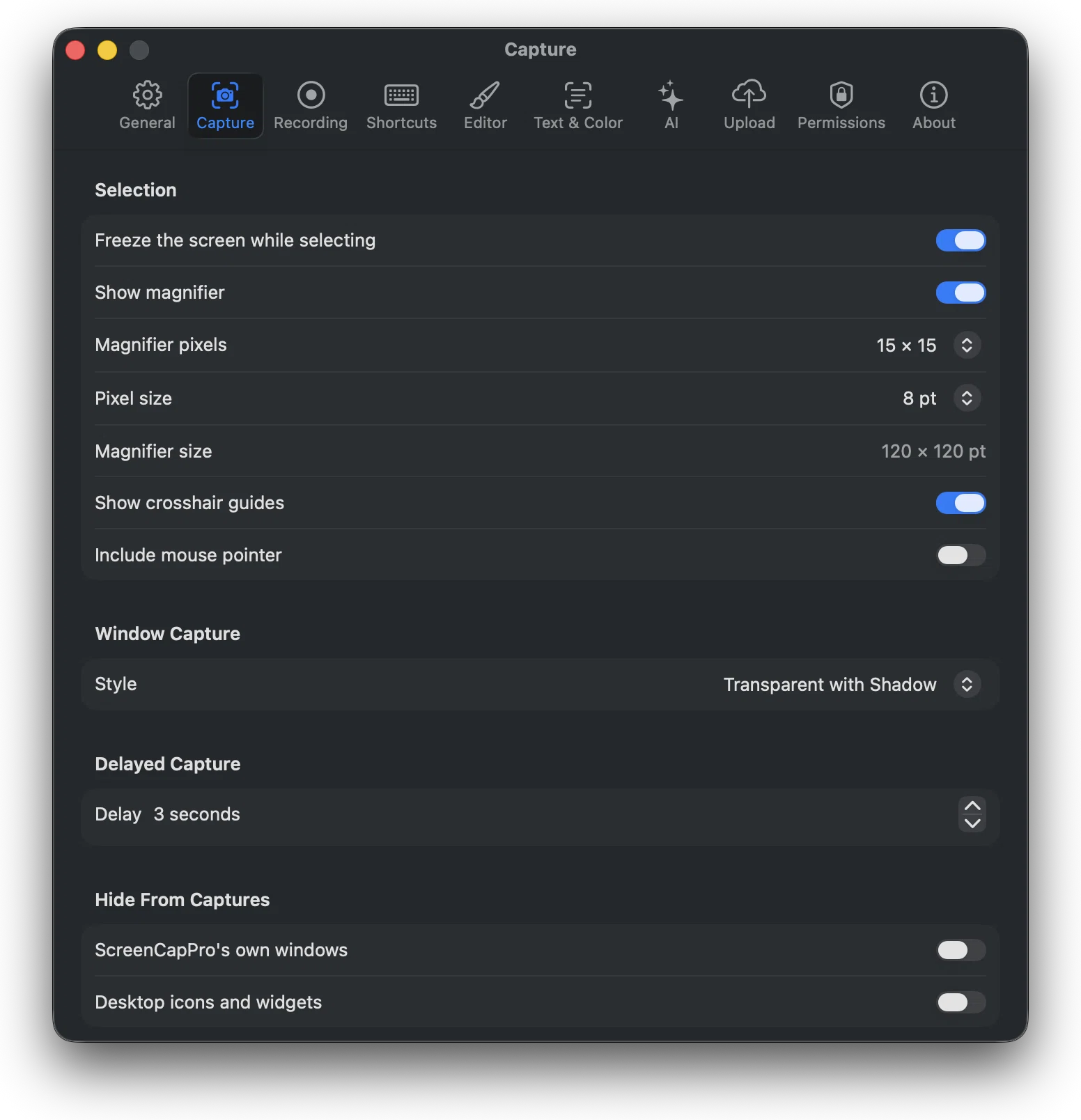
Set up a precise capture.
Preview the edges with the magnifier and crosshair guides. Choose how captured windows look, then add a countdown when you need time to prepare.
- Magnifier with adjustable pixel grid
- Crosshair guides for accurate edges
- Choose a window capture style
- Set a delayed capture countdown
02EXPLAIN & EDIT
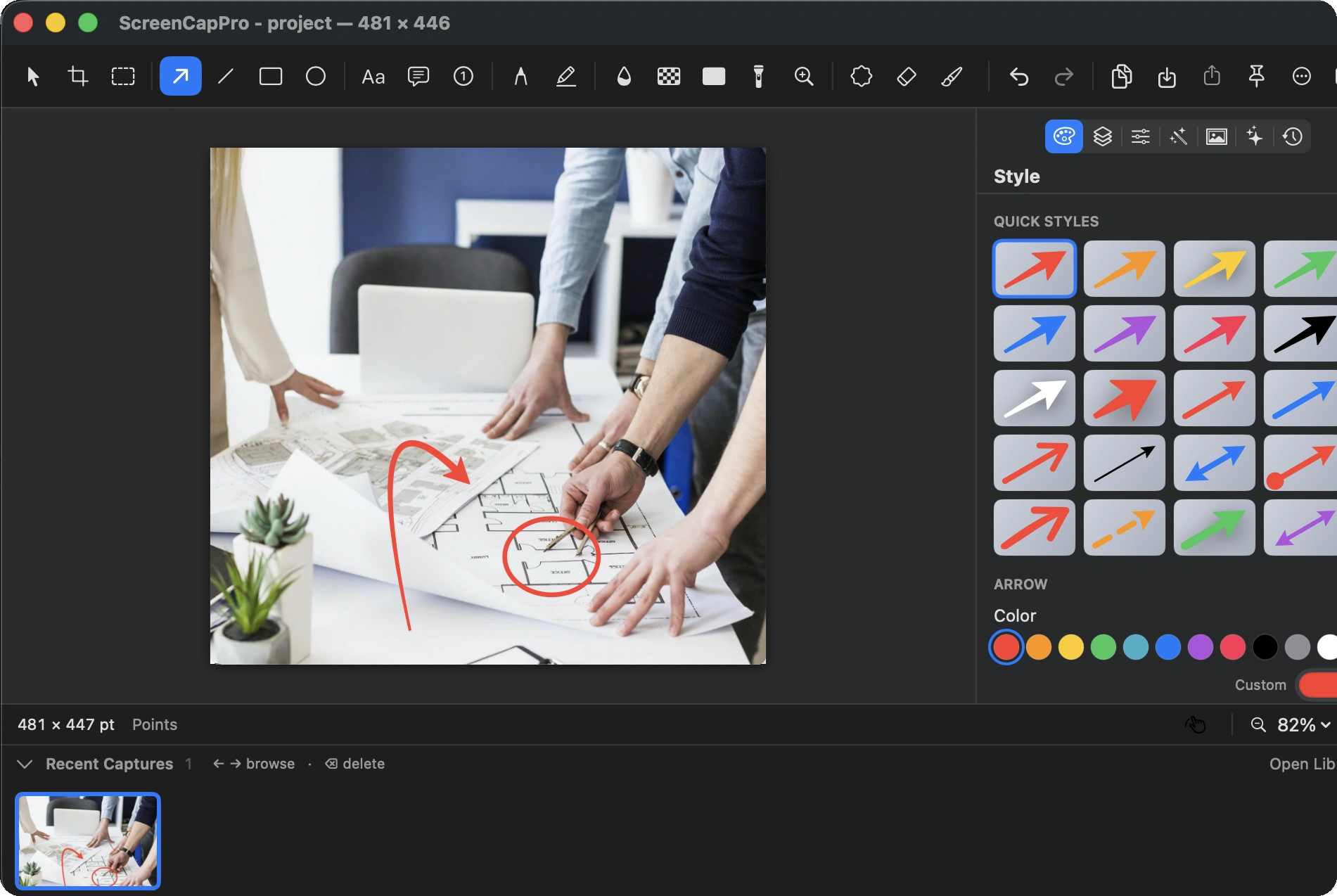
Mark up the capture right away.
Bring a capture into the Editor and point directly to the detail that matters. Add arrows, labels and numbered steps, then keep annotations editable as you refine the image.
- Markup tools and stamps
- Blur, pixelate and redact
- Layers, blend modes and saved history
- Crop, retouch, adjust and add effects
03RECORD
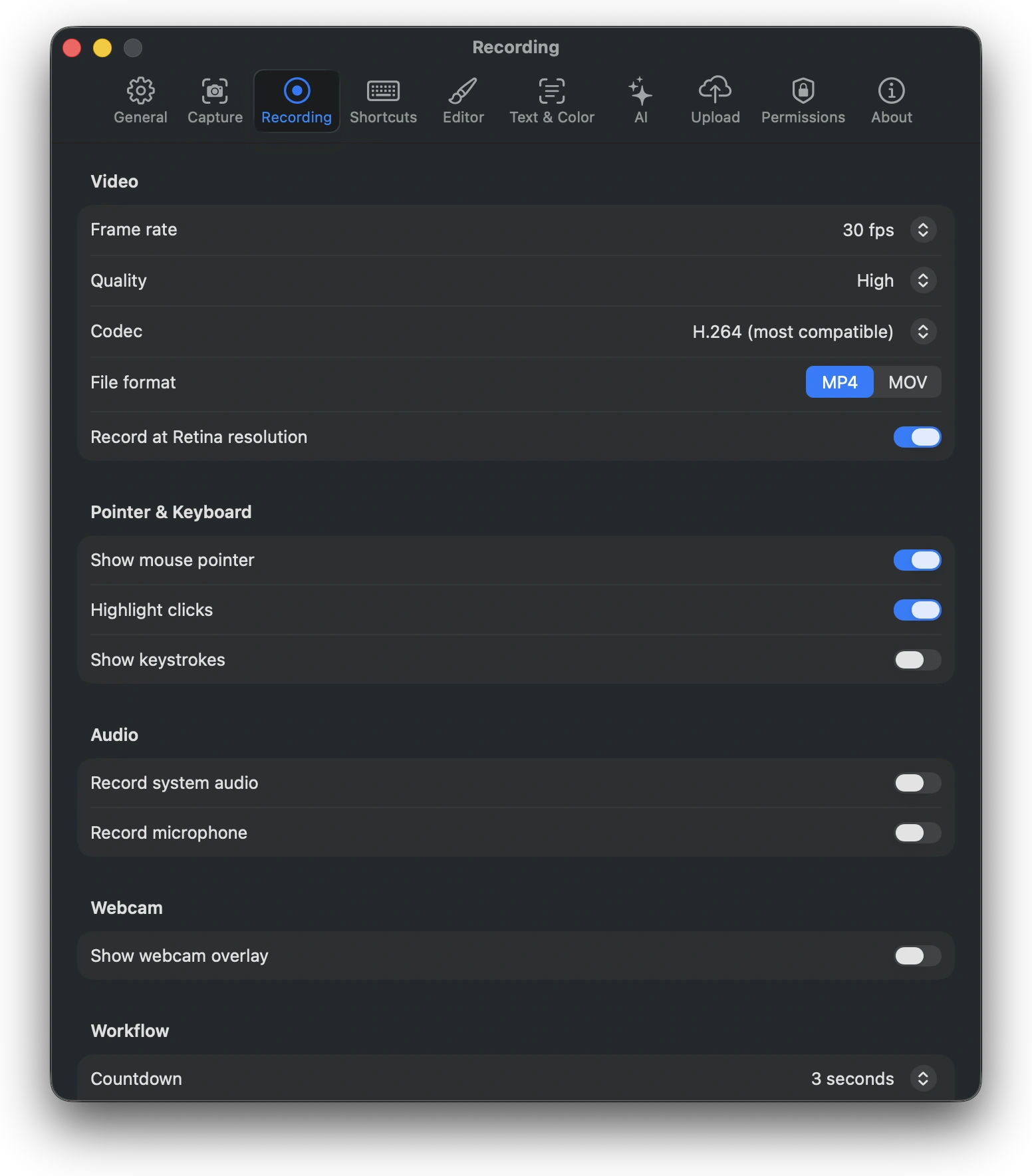
Choose what the recording shows.
Set the frame rate, quality and file format, then decide whether the pointer, clicks, keystrokes, system audio, microphone or webcam appear.
- Choose frame rate, quality and codec
- Record as MP4 or MOV
- Show pointer and highlight clicks
- Set audio, webcam and countdown options
04KEEP & SHARE
Find it when you need it.
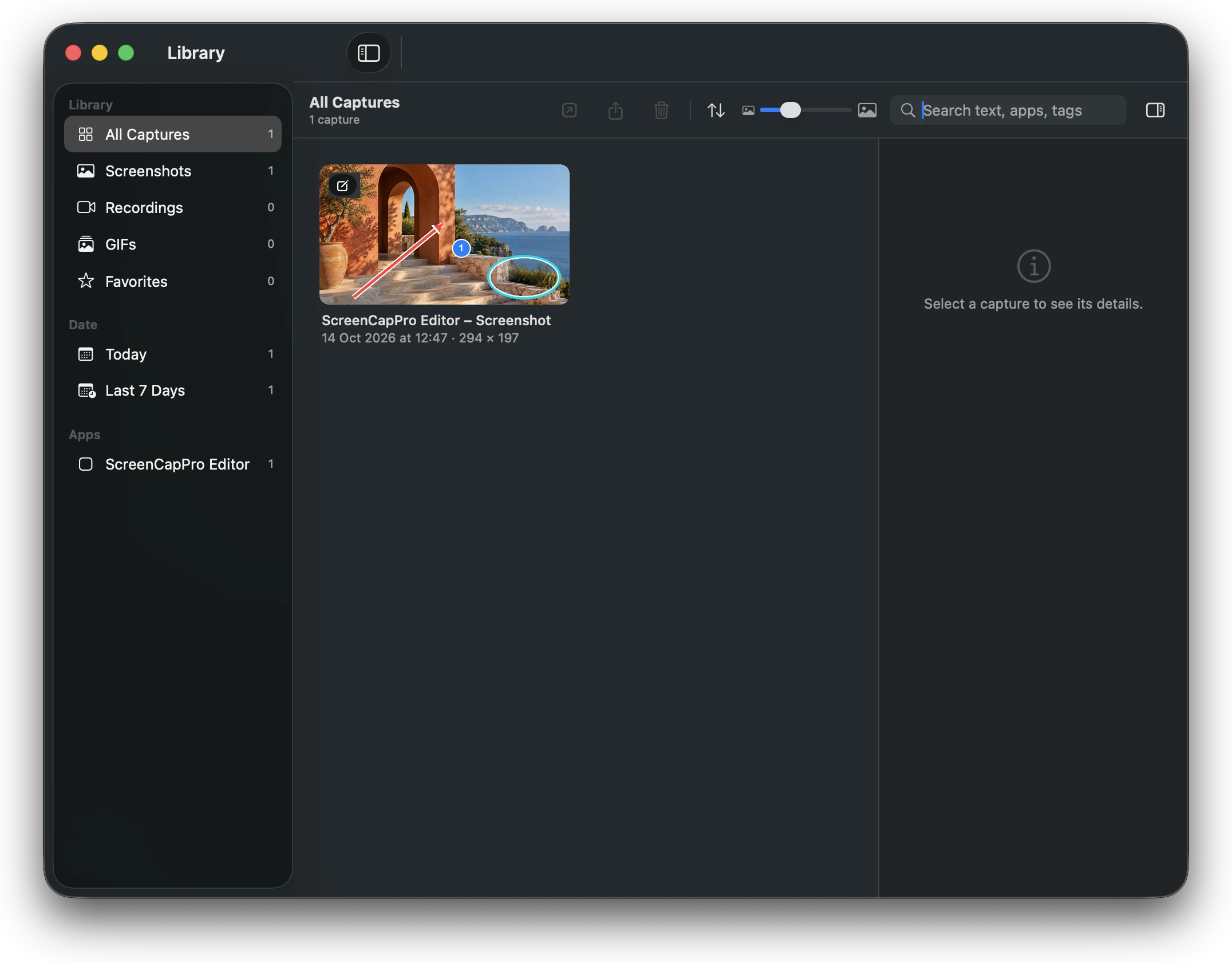
Search your capture library by title, source app, window, tags, or recognized text. Reopen editable images, pin a reference, or send the result where it belongs.
- Searchable local library
- Quick Access after capture
- Always-on-top pins
- Image, video, project and S3-compatible output
ALSO IN THE TOOLKIT
Little tools for
in-between tasks.
Pick & measure
Check colors and contrast, measure screen distances, or hide desktop icons for a cleaner capture.
Read & type
Recognize text, QR codes, and barcodes. Type clipboard text into apps that block ordinary paste.
Start from a link
Use the `screencappro://` URL scheme to start supported capture, recording, text, color, ruler, or library actions.
YOUR TOOLS, YOUR CHOICE
AI is optional.
You bring the key.
AI editing connects to a provider you choose and requires your own API key. When you submit an image and prompt, they go from your Mac to that provider. Keys are stored in macOS Keychain.
ScreenCapPro also supports optional uploads to an S3-compatible destination that you configure.
COMPATIBILITY
Made for Mac.
ScreenCapPro requires macOS 15 or later and supports Apple silicon and Intel Macs.
Screen & System Audio Recording permission is required for capture and recording. Accessibility, microphone, and camera permissions are optional and used by the features that need them.GOOD TO KNOW
ScreenCapPro,
clearly explained.
What can I capture?+
A region, window, display, multiple displays, or a scrolling page. You can also delay a capture, repeat an area, make a numbered step guide, or extract text.
Can it record my screen and audio?+
Yes. It records a screen, window, or region. System audio and microphone narration can be included; a camera bubble, cursor, click highlights, and keystroke overlay are optional.
Can I skip the AI feature?+
Yes. AI editing is optional. If you use it, provide a key for a supported provider. The submitted image and prompt are sent to that provider when you use the AI feature.
What can I export?+
Images can be saved in PNG, JPEG, HEIC, TIFF, GIF, BMP, PDF, or WebP formats, as well as editable ScreenCapPro projects. Recordings can be exported as MP4 or GIF, with MOV available for recording.
SCREENCAPPRO / BY KYROLABS